
Installing an APK from outside the Google Play Store gives you freedom, but it also removes the review process that stands between you and a bad file. Nobody will inspect the download for you, so the job falls to you. The good news is that a careful check takes about five minutes and needs only your phone, a browser and a few free tools.
This guide shows you how to check if an APK file is safe, in the order that catches the most problems first. If the format is new to you, read our beginner guide to APK files first. For the wider picture on risk, see is it safe to download APK files.
Quick Answer: To check if an APK file is safe, confirm it came from the developer’s official site or a trusted open-source repository, compare its SHA-256 hash with the published one, scan it on VirusTotal, read the permissions it asks for, and let Google Play Protect scan it. No single check is a guarantee, so if anything looks wrong, do not install the file.
Why You Should Check Every APK
An APK is a full installer. Once you run it, the app can request access to your contacts, messages, storage and more. Attackers know this, so they repackage popular apps with hidden extras such as ad fraud code, spyware or banking trojans, then upload them to look-alike websites. The repackaged app often works exactly like the original, which is why a file that “seems fine” tells you nothing.
Checking before installing is far easier than cleaning up afterwards. A few minutes now can save you from stolen accounts, surprise charges or a phone that needs a full reset.
Step 1: Check Where the File Came From
The source matters more than any tool. Ask yourself three questions:
- Did this file come from the developer’s own website or official download page?
- Is it hosted on a well-known open-source repository where the developer publishes releases?
- Or did it come from a random link in a video description, a forum post or a pop-up?
Only the first two are acceptable. Type the developer’s address into your browser yourself instead of clicking a link someone sent you. If the app is also on Google Play, install it from there whenever you can. Our guide on how to spot fake APK websites lists the warning signs to look for.
Step 2: Inspect the Basic File Details
Before opening anything, look at the file in your Downloads folder.
- Extension: it should end in .apk. A file called apk.zip or installer.exe is not a normal Android installer.
- Size: compare it with the size listed by the developer. A tiny file for a big app, or a huge one for a simple tool, is suspicious.
- Name: attackers often add words like “pro”, “unlocked” or “free coins”. Those labels usually mean the file has been modified.
If the file is a bundle such as XAPK, the rules differ slightly. Our comparison of APK vs XAPK vs AAB explains what each format should look like.
Step 3: Compare the SHA-256 Hash
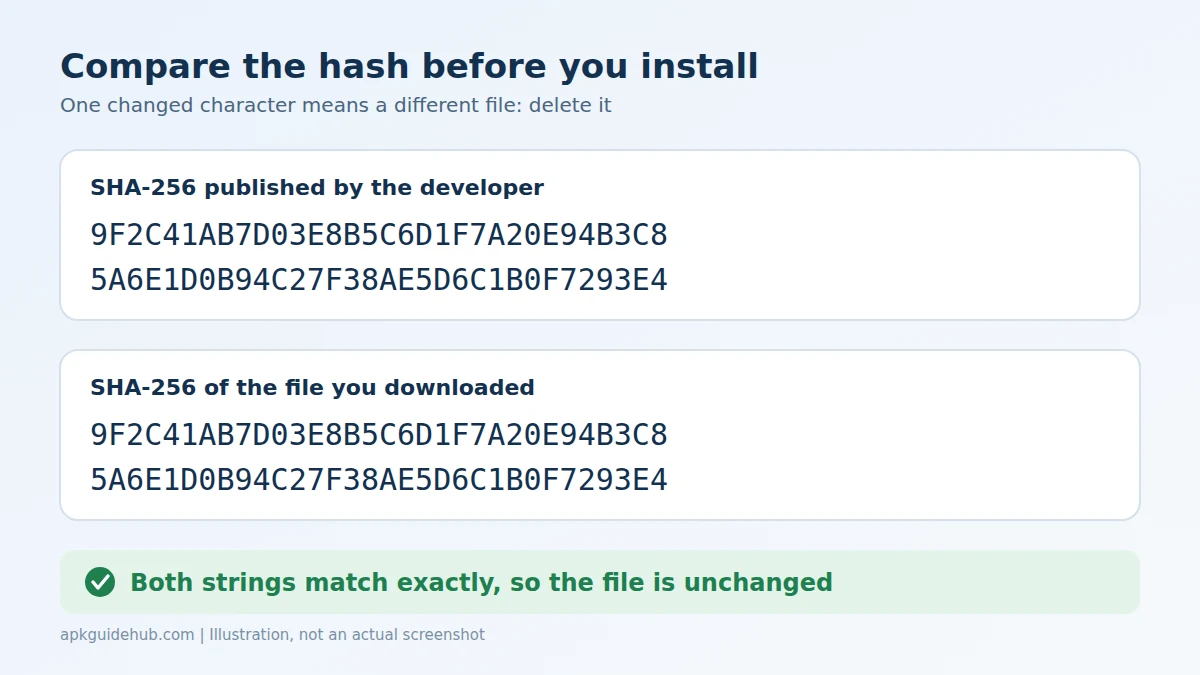
A hash is a long string of letters and numbers that works like a fingerprint. If even one byte of the file changes, the hash changes completely. Some developers publish the SHA-256 hash next to the download link, usually on the same page.
To check it:
- Copy the published hash from the developer’s page.
- Generate the hash of your file. On Windows, open Command Prompt and run certutil -hashfile yourfile.apk SHA256. On macOS use shasum -a 256 yourfile.apk, and on Linux use sha256sum yourfile.apk. Several free hash-checker apps can do the same on Android.
- Compare the two strings. They must match exactly.
If they differ, the file was corrupted or altered, so delete it. For a deeper walkthrough, see our guide on how to verify an APK signature and SHA-256 hash.
Step 4: Scan the File With VirusTotal
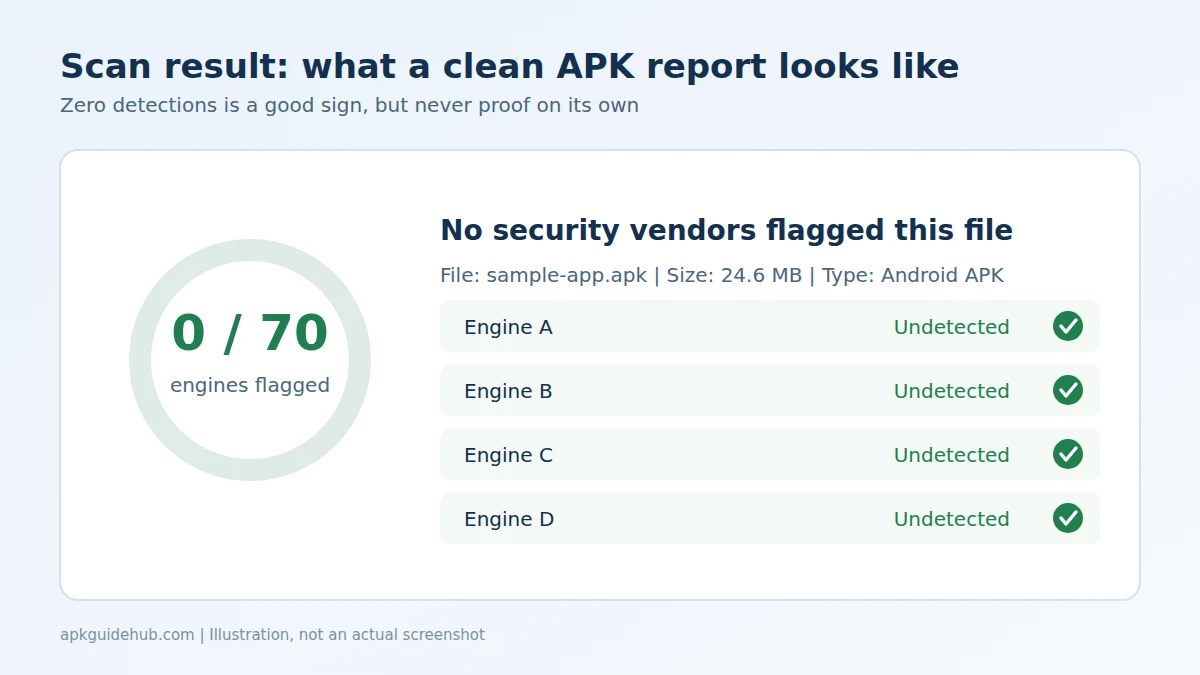
VirusTotal is a free online service owned by Google that runs a file through dozens of antivirus engines at once. Upload the APK on the VirusTotal website, wait for the results, and read the detection summary.
A few tips for reading the report:
- Zero detections is a good sign, but not proof, because brand-new malware may not be recognised yet.
- One or two odd detections from lesser-known engines can be false positives, especially for apps that use aggressive advertising libraries.
- Many detections from well-known engines mean you should stop and delete the file.
- Check the Details and Behavior tabs if they appear, as they show requested permissions and network activity.
We cover this in more detail in how to scan an APK with VirusTotal. Remember that uploaded files may be visible to others, so never upload an APK that contains private data.
Step 5: Review the Permissions
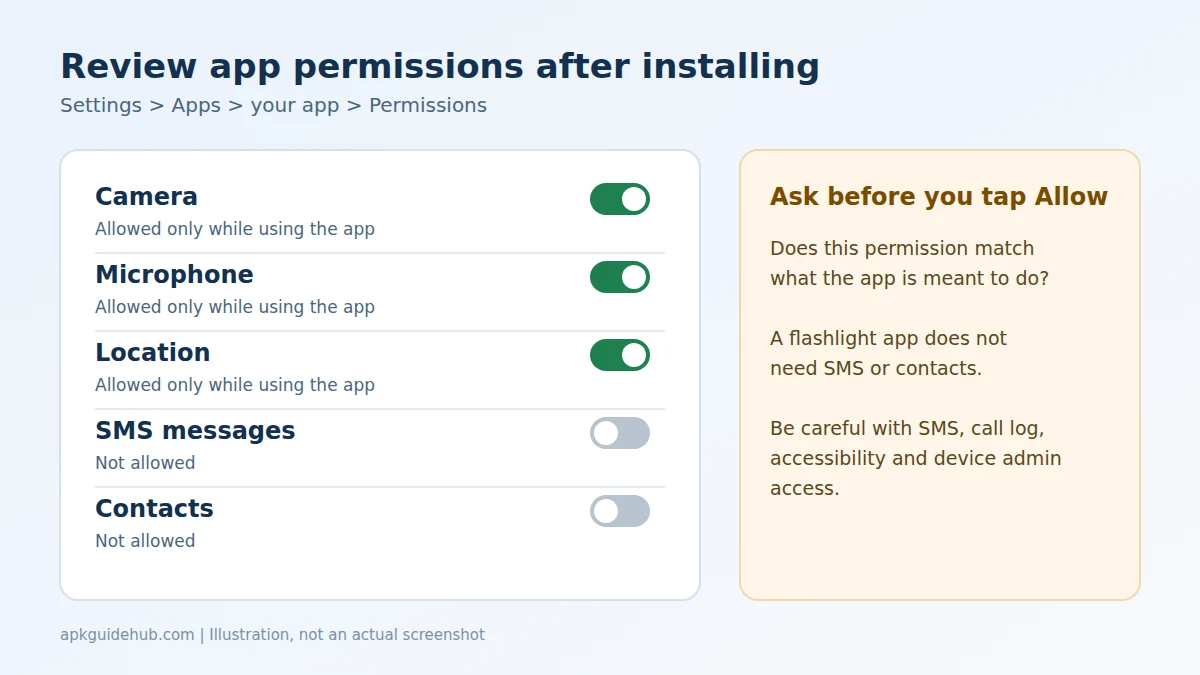
Permissions tell you what the app wants to do. A flashlight app has no reason to read your SMS messages, and a simple calculator does not need your microphone or contacts.
On the install screen, or in the VirusTotal details, look at what the app requests. Then ask: does each permission match what the app is supposed to do? Be especially careful with:
- SMS and call log access
- Accessibility service access
- Device administrator rights
- Permission to draw over other apps
These are the favourites of banking trojans. If you want to understand what is normal, read Android app permissions explained.
Step 6: Check the Signing Certificate (Optional)
Every APK is signed with a developer certificate. When a repackaged version is built, the signature almost always changes, because the attacker does not have the original developer’s private key.
If you have a computer with the Android SDK build-tools installed, run apksigner verify –print-certs yourfile.apk and compare the certificate fingerprint with the one shown for the official release. This is more technical, but it is one of the strongest checks available. Developers of open-source apps often publish their signing fingerprint on their website.
Step 7: Let Google Play Protect Scan It
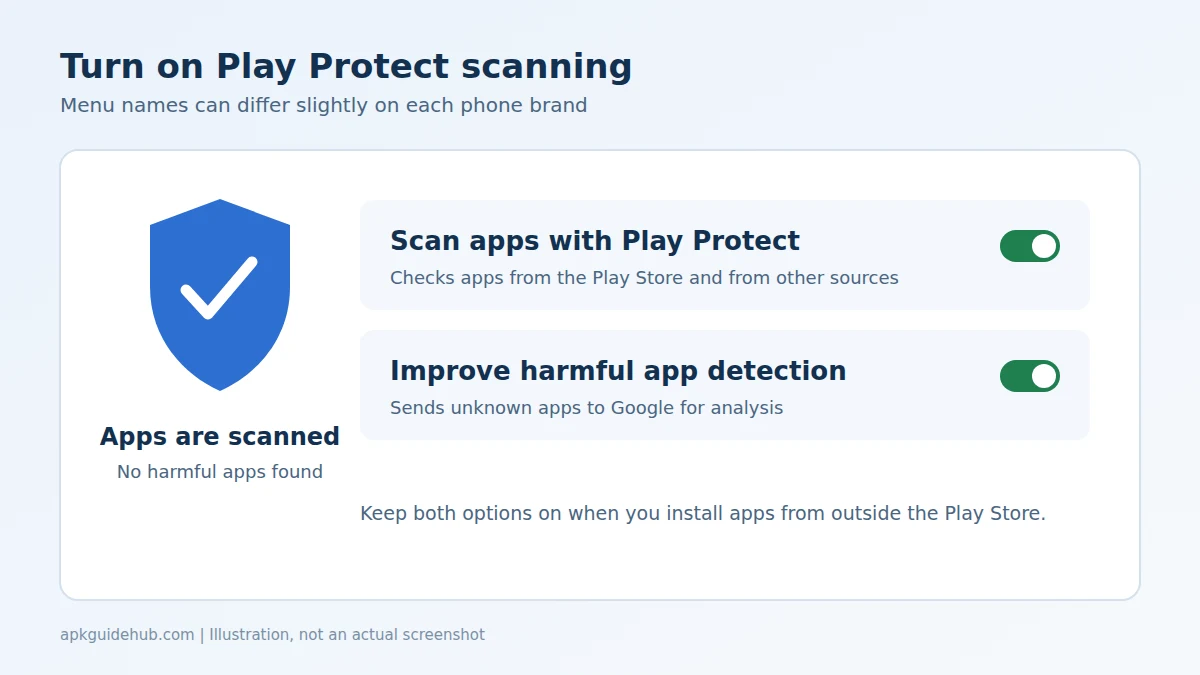
Google Play Protect can scan apps installed from outside the Play Store. Open the Play Store, tap your profile picture, choose Play Protect, and make sure scanning is on. When you install the APK, Play Protect may show a warning or ask to scan the file. Do not ignore it. If you are unsure what a specific warning means, our guide on how to fix the Blocked by Play Protect warning explains when it is reasonable to continue and when to stop.
Red Flags That Mean “Delete the File”
Stop immediately if you notice any of these:
- The site forces you to install a separate “download manager” first.
- The file promises paid features for free, or claims to be “premium unlocked”.
- The hash does not match the developer’s published value.
- Several major antivirus engines flag it on VirusTotal.
- The app asks for permissions that make no sense for its purpose.
Apps that unlock paid content illegally are not only risky, they also break copyright rules. We do not recommend or link to them.
What to Do After Installing
Safety does not end at the install button. Open the app once and watch for strange behaviour such as constant pop-ups, battery drain or requests to turn on accessibility features. Review the permissions under Settings > Apps, and remove any you do not need. If something feels wrong, uninstall the app, run a Play Protect scan, and change the passwords of any accounts you used while it was installed.
Conclusion
You do not need to be a security expert to protect your phone. Check the source, inspect the file, compare the hash, scan with VirusTotal, review permissions and let Play Protect have its say. If every step looks clean, the risk drops sharply, though it never reaches zero. When in doubt, skip the download and use the official Play Store version instead.
Frequently Asked Questions
Can I tell if an APK is safe just by looking at it?
No. A malicious APK can look and behave exactly like the original app. You need to check the source, hash, scan results and permissions, because the file name and icon prove nothing.
Is VirusTotal enough to decide if an APK is safe?
It is a very useful second opinion, but not a final verdict. New or targeted malware may show zero detections, so combine VirusTotal with source checks, hash comparison and a permissions review.
What if the developer does not publish a SHA-256 hash?
Then rely on the other checks, and prefer a different source if you can. Official sites, open-source release pages and the Play Store are all better choices than unverified mirrors.
Does Play Protect scan APK files I install manually?
Yes, when Play Protect is turned on it can scan apps installed from outside Google Play. It may warn you or ask to send an unknown app for analysis, and you should take those prompts seriously.
What should I do if I already installed a suspicious APK?
Uninstall it right away, run a full Play Protect scan, review your device administrator and accessibility settings, and change passwords for important accounts. If the phone still behaves oddly, back up your data and reset it.
- How to Verify an APK Signature and SHA-256 Hash
- How to Scan an APK With VirusTotal
- How to Spot Fake APK Websites