
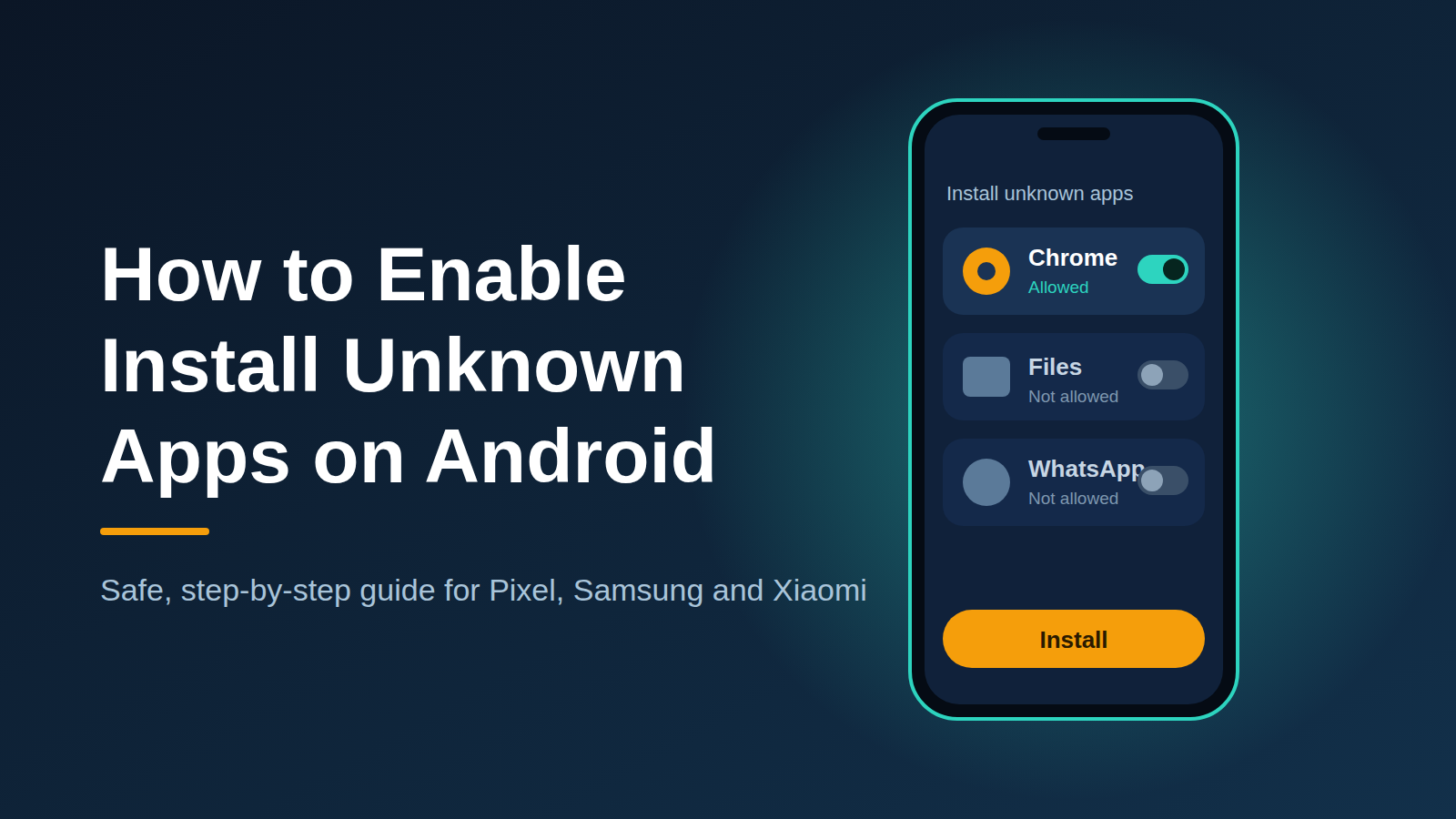
Quick answer: On Android 8 and newer, open Settings > Apps > Special app access > Install unknown apps, choose the app you will install from (like Chrome or Files), and turn on Allow from this source. On Android 7 and older, go to Settings > Security and enable Unknown sources.
Android blocks apps from outside the Play Store by default. This protects you, but it also stops you from installing an APK file you downloaded yourself. The fix is a setting called Install unknown apps (called Unknown sources on old phones). This guide shows where to find it, how to use it safely, and how to switch it off afterwards.
What Does “Install Unknown Apps” Mean?
“Unknown apps” are apps that do not come from an official app store on your phone. Android needs your approval before it lets another app, such as your browser, install them. If you want to understand the file type itself, read What Is an APK File?
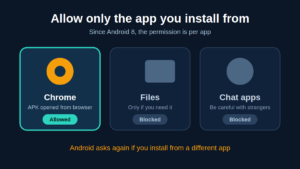
Since Android 8.0 (Oreo), the permission is per app. You do not unlock the whole phone. You only allow the specific app that opens the APK, for example:
- Chrome (when you open the file right after downloading)
- Files by Google or My Files (when you open it from your storage)
- Another browser, WhatsApp or Telegram if you received the file there
This is safer than the old system, because you can leave every other app blocked.
Method 1: Allow It From the Install Prompt (Easiest)
- Download your APK and tap it.
- If Android shows “For your security, your phone is not allowed to install unknown apps from this source”, tap Settings.
- Turn on Allow from this source.
- Press the back button and tap Install.
This is the fastest way because Android opens the correct screen for you.
Method 2: Turn It On From Settings
If you do not see the prompt, use the path below. The exact words can vary by brand, so use the search bar at the top of Settings and type “install unknown apps” if you cannot find it.
Google Pixel and stock Android (Android 8 to 15)
- Open Settings.
- Tap Apps.
- Tap Special app access.
- Tap Install unknown apps.
- Select the app you will install from, for example Chrome.
- Turn on Allow from this source.
Samsung Galaxy (One UI)
- Open Settings > Apps.
- Tap the three dots menu at the top right and choose Special access.
- Tap Install unknown apps.
- Select Chrome or My Files and switch on Allow from this source.
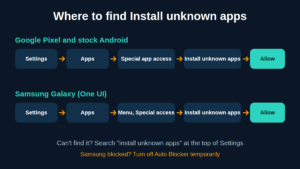
settings-path-pixel-samsung
On newer Samsung phones, Auto Blocker can stop installs from outside official stores. If the option is greyed out or the install is blocked, open Settings > Security and privacy > Auto Blocker and turn it off while you install. Turn it back on afterwards.
Xiaomi, Redmi and POCO
- Open Settings.
- Look for Privacy protection or Additional settings and open Special permissions.
- Tap Install unknown apps and allow your browser or file manager.
These phones may also show an extra security prompt or a short countdown before the Install button works. This is normal.
Other brands (OPPO, Vivo, Realme, Infinix, Tecno)
Menu names change often. Search for “unknown apps” or “install apps from external sources” in Settings, or follow the prompt shown when you tap the APK.
Add your own experience here: mention the phone model you tested on and what the screen looked like, for example “On my Samsung Galaxy A14, I found it under Settings > Apps > three dots > Special access.”
Method 3: Android 7.1 and Older
Older phones have a single switch.
- Open Settings.
- Tap Security (or Lock screen and security).
- Turn on Unknown sources.
- Confirm the warning message.
Because this switch applies to every app, remember to turn it off after installing.
Should You Turn It Off Afterwards?
Yes. This is a good habit. Once your install is finished, go back to the same setting and turn off Allow from this source for your browser. That way, no website or file you open later can install anything without you noticing.
Which App Should You Allow?
A common question is whether to allow Chrome or the file manager. The answer depends on how you open the file:
- If you tap the APK in the download notification or in Chrome’s download list, allow Chrome.
- If you open the APK from the Files or My Files app, allow that file manager.
- If you received the APK through a chat app, allow that chat app only if you really need to, and be extra careful with files sent by people you do not know.
Allowing only one app keeps the rest of your phone protected. If you later install from a different app, Android will simply ask again.
Why Is the Option Greyed Out or Missing?
Here are the most common reasons and fixes:
- Work or school phone: an administrator can block unknown apps. You will need to ask them or use a personal phone.
- Parental controls or Google Family Link: the parent account can block installs.
- Samsung Auto Blocker or a similar security feature: turn it off temporarily, as described above.
- Third-party security app: some antivirus apps restrict installs. Check its settings.
- Pending system update: install the update and try again.
If the install still fails after you allow it, see How to Fix “App Not Installed”.
Safety Tips When Allowing Unknown Apps
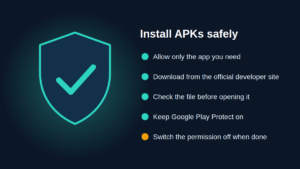
This setting is not dangerous by itself. The risk is the file you install. Follow these rules:
- Allow only the app you actually need (usually your browser or file manager).
- Download from the official developer site or a source you trust. See How to Spot Fake APK Websites.
- Check the file before opening it (How to Check If an APK File Is Safe).
- Keep Google Play Protect switched on.
- Switch the permission off again when finished.
Frequently Asked Questions
Is it safe to enable Install unknown apps?
The setting itself is safe if you allow it only for the app you trust and switch it off afterwards. The danger comes from installing files from unreliable sources.
Where is “Unknown sources” on Android 14 and 15?
There is no single “Unknown sources” switch anymore. It is under Settings > Apps > Special app access > Install unknown apps, and you allow it per app.
Do I have to enable it for every APK?
No. Once you allow your browser or file manager, it stays allowed until you turn it off. This is why it is a good idea to disable it afterwards.
Does enabling it void my warranty or trip Knox?
Allowing unknown apps does not root your phone or change system files. Rooting or flashing custom software is a different matter.
Can I install apps without enabling it?
Not from a downloaded APK. The Play Store, Galaxy Store and other stores that are already approved on your phone do not need this permission.
Conclusion
Enabling Install unknown apps takes less than a minute: open the setting, allow your browser or file manager, install the APK and then switch it off again. Next, follow our complete guide to installing APK files.
Related guides:
- How to Install APK Files on Android (Step-by-Step)
- What Is Google Play Protect and How Does It Work?
- Is It Safe to Download APK Files?
More guides: Browse all Blog articles